
Workflow
How to Make Anki Cards From Movies and TV Shows Safely
Turn permitted movie or TV subtitle moments into focused Anki cards by aligning SRT or VTT cues, clipping audio, choosing useful frames, and preserving sources.
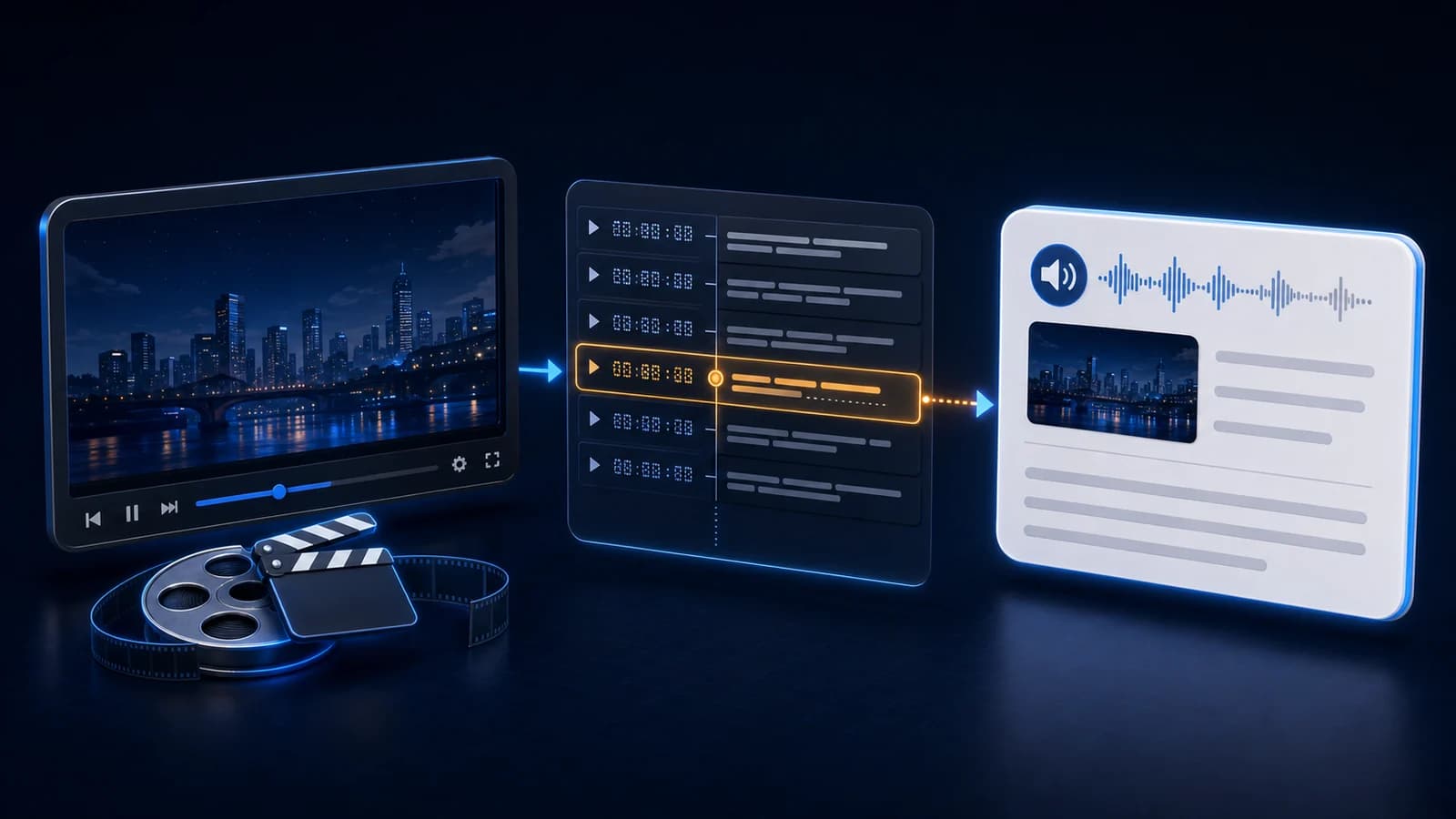
To make Anki cards from movies or TV shows, start with a local video and subtitle track you are allowed to process. Align the SRT or VTT cues with the dialogue, select a few useful lines, trim short audio clips, add a screenshot only when it clarifies the scene, and store the title, episode, and timestamp on every note.
That workflow turns movie subtitles to Anki without treating an entire script as a deck. It also keeps the often-searched “Netflix to Anki” idea honest: a streaming subscription is not permission to extract protected media, and this guide does not cover DRM circumvention or unauthorized downloads.
Start with permitted movie and TV inputs
Use a video you recorded, own, licensed, received with permission, or are otherwise legally allowed to process. Pair it with an authorized subtitle track for the same release, language, frame rate, and edit. A theatrical cut and an extended cut may have identical dialogue but different timing.
For a local workflow, keep these files together while you work:
- the permitted video file;
- the matching
.srtor.vttsubtitle file; - a working folder for short clips and frames; and
- a source note containing title, season, episode, edition, and rights or license context.
Do not obtain that local file by bypassing a platform’s protection. Netflix’s current Terms of Use grant limited access and, unless explicitly authorized, restrict reproducing content and circumventing content protections. So “Netflix to Anki” is not a direct extraction recipe: check the platform terms, the content license, and any applicable law, then use a source you are actually permitted to process.
If your permitted source is a creator video rather than a film or episode, the YouTube subtitles to Anki guide covers that source-specific caption workflow.
Align SRT or VTT subtitles with the video
SRT and WebVTT files organize text into timed cues. The W3C WebVTT specification defines WebVTT as time-aligned text data for video or audio, with cues that carry start and end times. Treat those times as navigation hints, not guaranteed audio boundaries.
Check the beginning, middle, and end
Open the video with the subtitle track and inspect at least three spoken lines: one near the beginning, one near the middle, and one near the end.
- If every cue is early or late by the same amount, the track has a constant offset.
- If alignment gets progressively worse, the subtitle release, frame rate, or edit probably differs.
- If only one area fails, a scene may have been inserted, removed, or retimed.
Correct the track or choose a matching one before making cards. Do not compensate by trimming every clip around a bad cue; that hides the synchronization problem and makes later cards inconsistent.
Clean the subtitle text
Join cues that split one sentence, separate speakers combined in one cue, remove formatting tags that do not belong in the note, and restore punctuation only after listening. Keep meaningful features such as hesitation, contraction, or informal grammar when they are part of the line.
Subtitle text can also differ intentionally from speech because it was shortened for reading speed. The audio is the evidence for an audio-derived card. If you cannot confidently verify the wording, skip the line.
Choose useful lines, not famous quotes
A memorable scene is helpful, but fame is not a learning criterion. Prefer a line that is audible, understandable with little setup, and contains one expression, grammar pattern, or listening distinction you expect to meet again.
Imagine an episode cue at 00:18:42:
You were supposed to call.
This can be a useful card if were supposed to is the target and the speaker’s tone makes the expectation clear. It is weaker if three unseen plot events are required to understand who should have called whom.
Reject lines with overlapping dialogue, heavy sound effects, uncertain words, or so much story dependence that the front becomes a paragraph. A subtitle file may contain hundreds of cues; your review queue should contain only the few moments that earn repeated attention.
Build one focused card from each selected moment
Use the broader five-step video-to-Anki workflow when you need the complete production path. For a movie or episode, the practical card-building pass is:
- Reopen the selected timestamp and verify the exact speaker and line.
- Extend the cue boundary until the full utterance sounds natural.
- Trim a short audio clip with the first and last sounds intact.
- Capture one clean frame only if it explains speaker, object, gesture, or mood.
- Add meaning or translation for this scene, not every dictionary sense.
- Store source details before exporting or importing the note.
The audio-clipping guide explains how to avoid chopped consonants and unrelated dialogue. When motion or gesture matters, compare video clips with audio and screenshots instead of defaulting to the heaviest format.
| Field | Store | Why it matters |
|---|---|---|
Sentence | Verified spoken line | Keeps the transcript editable |
Focus | One target phrase or feature | Defines the card’s job |
Meaning | Contextual explanation or translation | Avoids an overbroad answer |
Audio | One complete short utterance | Preserves pronunciation and prosody |
Image | Optional useful frame | Restores scene context without decoration |
Source | Title, season/episode, edition, timestamp | Makes the moment recoverable |
For listening recognition, put audio on the front and reveal the sentence on the back. For reading recognition, show the sentence first and use audio as feedback. The Anki Manual’s field documentation explains how templates replace field references, while the media guide notes that support varies across clients and describes MP3 audio and MP4 video as the most broadly supported formats.
Keep screenshots off the front when subtitles, a sign, or a distinctive object reveals the answer. The audio-and-image card guide gives more front/back examples.
Preserve provenance precisely
Series title — S02E05 — 00:18:42 — local licensed copy is more useful than episode.mp4. A stable Source field helps you repair a mistranscription months later and separates where the example came from from what it teaches. The same design principles apply beyond web video; see the guide to recoverable source timestamps.
Choose a manual or assisted workflow
A manual workflow gives maximum control: mark timestamps in a player, clean subtitle text, trim clips in an audio editor, capture frames, and add notes individually or through a structured text import. It works well for a small weekly batch and makes every decision visible.
An assisted workflow can parse candidate timings, draft transcript fields, propose clip boundaries, prepare media, and package repetitive output. It saves production time, but it cannot decide whether your source is permitted, whether a subtitle translation fits the scene, or whether a line deserves months of reviews.
Product support must be checked before designing the workflow around it. VidToAnki is currently a private beta positioned around permitted MP4 input and work toward an import-ready APKG. It does not download a streaming URL or decide your content rights. Do not assume direct Netflix input or SRT/VTT upload support unless the current product explicitly confirms it.
Anki can import text files and packaged decks; its official importing documentation describes those paths. Whichever route you use, test a small batch before committing a season’s worth of cards.
Quality-check before the cards enter reviews
Preview the actual front and back, then use this compact checklist:
- You are permitted to process and retain the source media.
- The subtitle matches the spoken line and speaker.
- The clip contains the complete target without excess dialogue.
- The card tests one clear thing.
- Translation or meaning fits this scene.
- The screenshot adds context and does not reveal the answer.
- Title, episode, edition, and timestamp are recoverable.
- Audio and image load on the Anki clients you use.
- The batch size fits your existing review load.
Delete a card when you cannot settle the transcript, the scene is too dependent on plot context, or the media is not yours to retain. A skipped line costs nothing tomorrow; a weak card keeps charging review time.
Movie subtitles to Anki FAQ
Can I turn movie subtitles into Anki cards?
Yes, when you own the media or have permission, a license, or another applicable right to process it. Align selected subtitle cues with the actual dialogue, then keep only accurate lines with a useful learning target.
Can I make Netflix to Anki cards?
A Netflix subscription does not by itself authorize extracting or copying protected video, audio, or subtitles. Do not circumvent DRM; use a local source and subtitle track you are permitted to process instead.
Should every subtitle cue become an Anki card?
No. Subtitle cues are timing aids, not learning decisions. Keep complete, clear lines with one useful target and a review cost you can sustain.
Does VidToAnki accept SRT or VTT files?
Do not assume subtitle-file upload support. The current private beta is positioned around permitted MP4 input and an import-ready APKG workflow; confirm current input support before relying on a product-specific path.
Related guides
YouTube Subtitles to Anki: A Reliable Card Workflow
Turn permitted YouTube caption moments into focused Anki cards by selecting useful cues, checking transcript accuracy, aligning audio, and preserving source context.
Read article →How to Make Anki Cards From Videos: 5-Step Workflow
Make focused Anki cards from videos in five steps: select useful moments, verify text, add audio or images, structure fields, and inspect the APKG.
Read article →Anki Video Clips vs Audio and Screenshots
Choose short video clips or audio-plus-screenshot cards by learning goal, file size, review speed, device support, and the context each format preserves.
Read article →Add Source Timestamps to YouTube Anki Cards
Store useful source timestamps on video-derived Anki cards so you can reopen the exact scene, verify context, repair errors, and avoid cluttered prompts.
Read article →Anki Cards With Audio and Images: When Context Improves Recall
Use audio and screenshots in Anki without turning every language card into a noisy collection of hints.
Read article →