
Workflow
How to Make Anki Cards From Videos: 5-Step Workflow
Make focused Anki cards from videos in five steps: select useful moments, verify text, add audio or images, structure fields, and inspect the APKG.
To make Anki cards from a video, choose a small number of useful moments, verify the exact sentence, decide what each card should test, store the text and media in separate fields, then preview the exported deck before importing it. Do not turn every subtitle into a card.
This guide explains that five-step process for manual or assisted card creation. For the broader path—including permissions, missing subtitles, card design, APKG checks, and review load—start with the complete video-to-Anki workflow hub.
What makes a useful video card
A video card should test one understandable thing. For language learners, that is usually a word, phrase, grammar pattern, or listening distinction inside a sentence you genuinely wanted to understand.
The source video gives you more than text. It gives you pronunciation, timing, speaker emotion, physical context, and a reason the sentence mattered. The card should preserve the smallest amount of that context that helps you recall the language without giving the answer away.
Useful fields often include:
- The original sentence in the target language.
- The word or phrase you want to learn.
- A translation or short explanation.
- A tightly trimmed audio clip.
- A screenshot when the scene adds meaning.
- A source label or timestamp so you can return to the moment.
Anki’s own manual recommends keeping pieces of information in separate fields when a note contains audio, images, hints, and translations. Separate fields make it possible to change the card template later without editing every note. See the Anki guide to adding and editing notes.
The video-to-Anki workflow
The workflow below keeps the two decisions that matter most—selection and verification—between the source video and the final deck. VidToAnki can reduce repetitive production work, but you still decide which moments deserve a place in Anki.
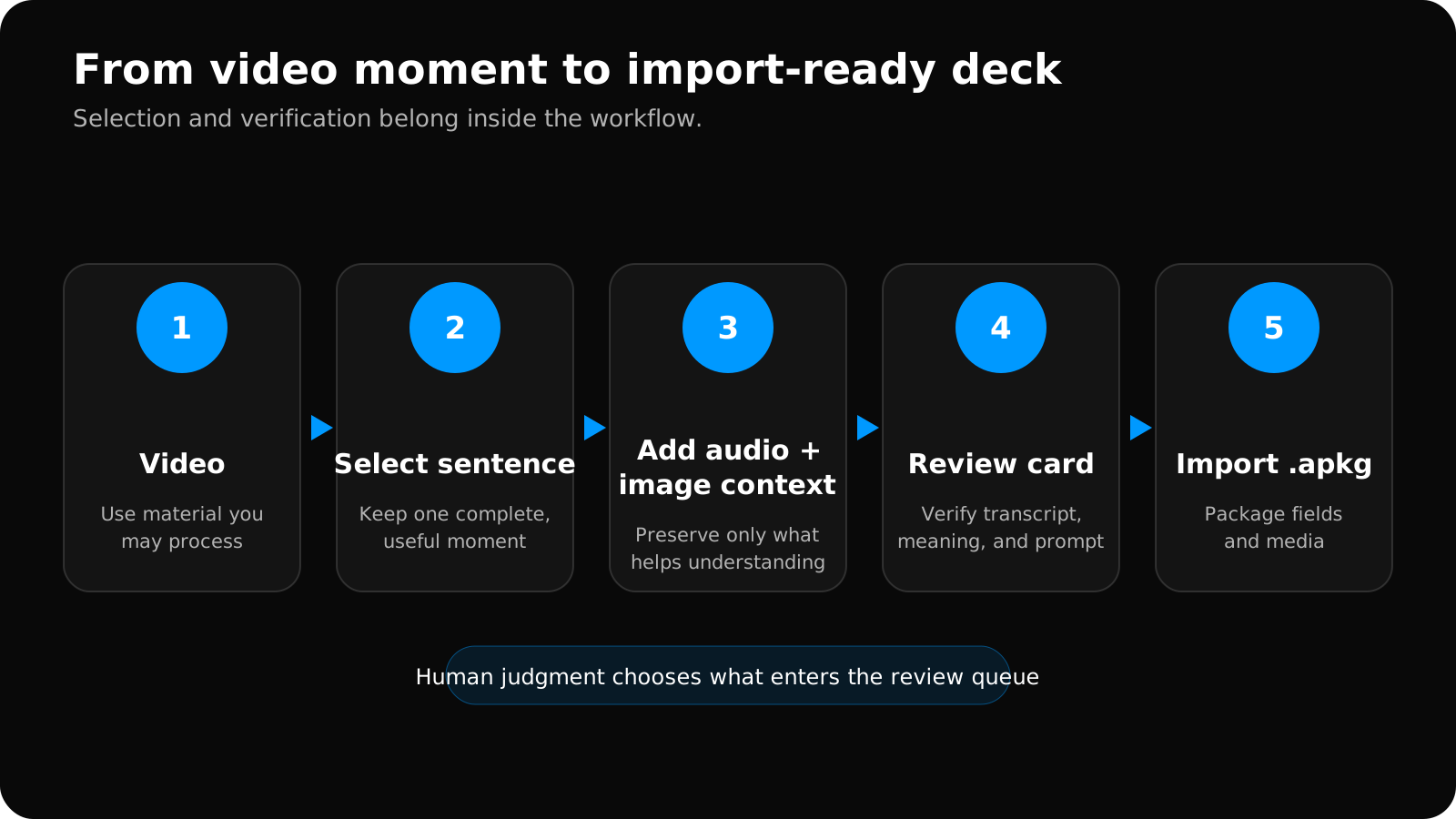
Swipe to explore the full diagram.
The comparison of where AI assistance helps and where manual judgment still wins makes the boundary between automation and learner review explicit.
1. Start with material you can use
Choose a video you own, recorded yourself, downloaded with permission, or are otherwise allowed to process. A clean MP4 is a practical input because it keeps the audio and image timing together.
If the source is a film or episode with a separate caption track, follow the movie and TV subtitle-to-Anki workflow to align SRT or VTT cues, preserve episode-level sources, and keep streaming rights in scope.
Prefer videos where the speech is clear enough to segment. Interviews, vlogs, lessons, and dialogue-heavy scenes are usually easier than overlapping speakers, loud music, or rapid cuts.
2. Find moments, not merely subtitles
Subtitles are a useful starting point, but subtitle boundaries are made for reading on screen. They may split one sentence across two captions, combine two speakers, omit punctuation, or paraphrase the audio.
Listen to the moment. Confirm the wording. Expand or trim the segment until it contains one complete, natural unit. If the sentence only makes sense after thirty seconds of setup, it is probably too dependent on context for a daily flashcard.
When the boundaries are the hard part, use the audio-clipping workflow for clean Anki prompts to avoid chopped speech and unnecessary dialogue.
For a repeatable way to judge candidates before this step, choose sentences with one clear learning target. If the source has no reliable captions, use the selective transcription fallback for videos without subtitles instead of guessing at the text.
3. Decide what the card tests
Before generating fields, finish this sentence: “When this card appears, I want to recall or recognize ___.”
That answer determines the front of the card. If you want listening recognition, lead with audio. If you want to recognize a written phrase, show the sentence and hide the target. If you want production, show a meaning or situation and ask for the target expression—but use production cards selectively because they are harder and often allow several valid answers.
First match the card format to that retrieval job, then generate the fields it needs.
4. Build structured fields
Keep the original sentence, translation, focus expression, media, and source in separate fields. Anki card templates control which fields appear on the front and back, so structured notes give you room to revise your design later. The Anki card-template documentation explains how fields become cards.
Here is one concrete video-flashcard example. The speaker says, “Could you give me a hand with this?” and the target is give me a hand.
| Field | Example value |
|---|---|
Sentence | Could you give me a hand with this? |
Focus | give me a hand |
Meaning | help me |
Audio | The complete utterance, trimmed at natural boundaries |
Image | An optional scene frame that shows the task, not the answer |
Source | Video title and timestamp |
For listening recognition, the front plays only the audio. The back reveals the sentence, highlights the phrase, explains its meaning in this scene, and keeps the source. Generate a second reading card only if it serves a separate goal; it is not automatically extra value.
For reusable media fields and conditional template behavior, follow the practical Anki audio-and-image field layout.
You can build the same fields from the copyable Anki card layouts or download the free editable language-learning Anki template instead of starting from an empty note type.
5. Preview before import
Automation can save the repetitive work, but it should not remove the final review. Check the transcript against the audio, make sure the translation matches this particular context, and confirm the screenshot or clip does not reveal the answer too early.
When the deck is ready, an .apkg package can carry notes, card templates, and media into Anki. The official packaged-deck guide explains how Anki handles imported packages and scheduling information.
When the file is ready, import and verify the APKG in Anki before adding the full batch to reviews.
As a pre-import check, the free Anki Import Checker can inspect the package locally for missing media, empty values, and template references to fields that do not exist.
What to avoid
Do not create one card for every subtitle. A ten-minute video can produce a review burden that lasts for weeks. Selectivity is part of learning, not an inefficiency to automate away.
Do not trust a transcript blindly. Proper names, short function words, and similar-sounding phrases are common failure points. One wrong word can teach the wrong sentence repeatedly.
Do not put every hint on the front. Translation, image, audio, and a highlighted target shown together can turn recall into recognition of the answer. Reveal supporting context after the attempt or behind a hint.
Do not lose the source. A filename, title, and timestamp make corrections much easier. They also preserve the connection to the material that made the phrase memorable.
A fast quality check
Before importing a generated deck, sample at least ten cards and ask:
- Can I tell what each card is testing?
- Does the audio start and end naturally?
- Does the sentence match what the speaker actually said?
- Is the translation correct in this context?
- Does the front avoid exposing the answer?
- Would I still want to review this card a month from now?
Use the checklist as a quick visual pass when you sample the exported deck. It is deliberately about card quality, not the number of cards produced.
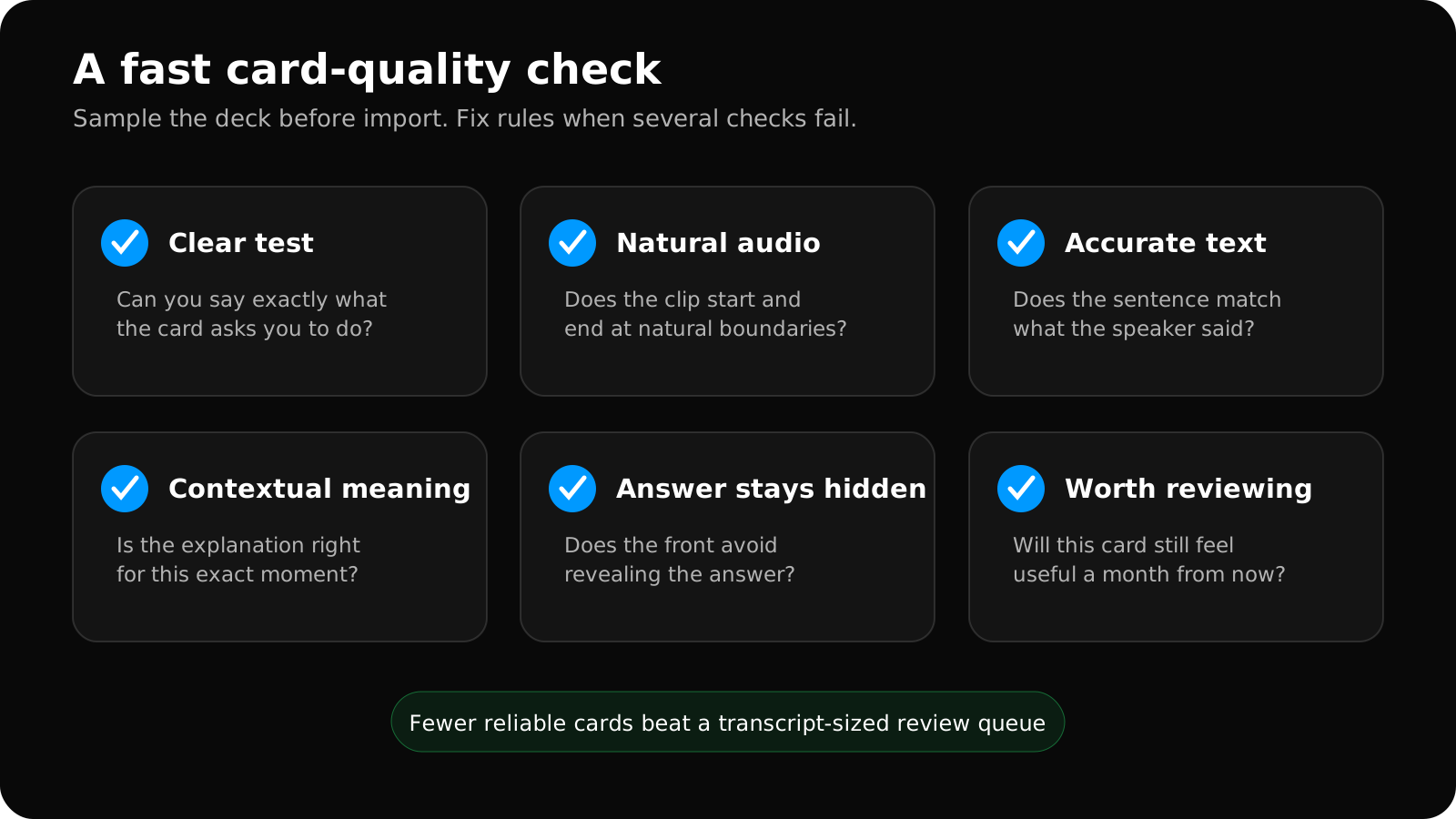
Swipe to explore the full diagram.
If the answer to several of these is no, fix the generation settings or reduce the deck before importing. A smaller deck of moments you care about is usually more valuable than a complete transcript converted into hundreds of obligations.
The goal is not maximum card production. It is a clean path from a meaningful video moment to a card you will still be willing to review.
Making Anki cards from videos FAQ
Can Anki turn a video into flashcards by itself?
Anki schedules and displays cards; it does not decide which video moments are useful or verify transcripts and translations. A manual or assisted workflow must select moments, prepare fields and media, and package or add the notes before Anki reviews them.
Should a video flashcard include the full video?
Usually no. Keep a short utterance and, when useful, one frame plus a recoverable source timestamp. Long embedded video slows review and often adds context unrelated to the target.
What if the video has no subtitles?
Transcribe only selected moments you can verify, or choose a captioned source. The no-subtitle video-to-Anki transcription workflow explains where to stop rather than guess.
Related guides
Sentence Mining With Anki: Examples, Template, and Checklist
Learn how to sentence mine with Anki: choose one-target sentences, see a complete card example, use a practical template, and control review load.
Read article →Anki Cards With Audio and Images: When Context Improves Recall
Use audio and screenshots in Anki without turning every language card into a noisy collection of hints.
Read article →How to Import an APKG File Into Anki
Import an APKG deck into Anki on desktop, iPhone, iPad, or Android, choose safe scheduling options, and troubleshoot missing media or updates.
Read article →AI Anki Generators vs Manual Sentence Mining
Compare AI-assisted Anki generation with manual sentence mining across speed, control, accuracy, context, and cleanup.
Read article →