
Card design
Anki Cards With Audio and Images: When Context Improves Recall
Use audio and screenshots in Anki without turning every language card into a noisy collection of hints.
Audio and images are most useful in Anki when they restore the context of a language encounter. They are least useful when they become decorative clues that let you answer without processing the target language.
For video-mined cards, start with the original sentence and learning target. Add a short audio clip when sound matters and a screenshot when the scene clarifies meaning, speaker intent, or reference.
The goal is not to decorate a flashcard. It is to carry the smallest useful piece of the original encounter into a focused review.
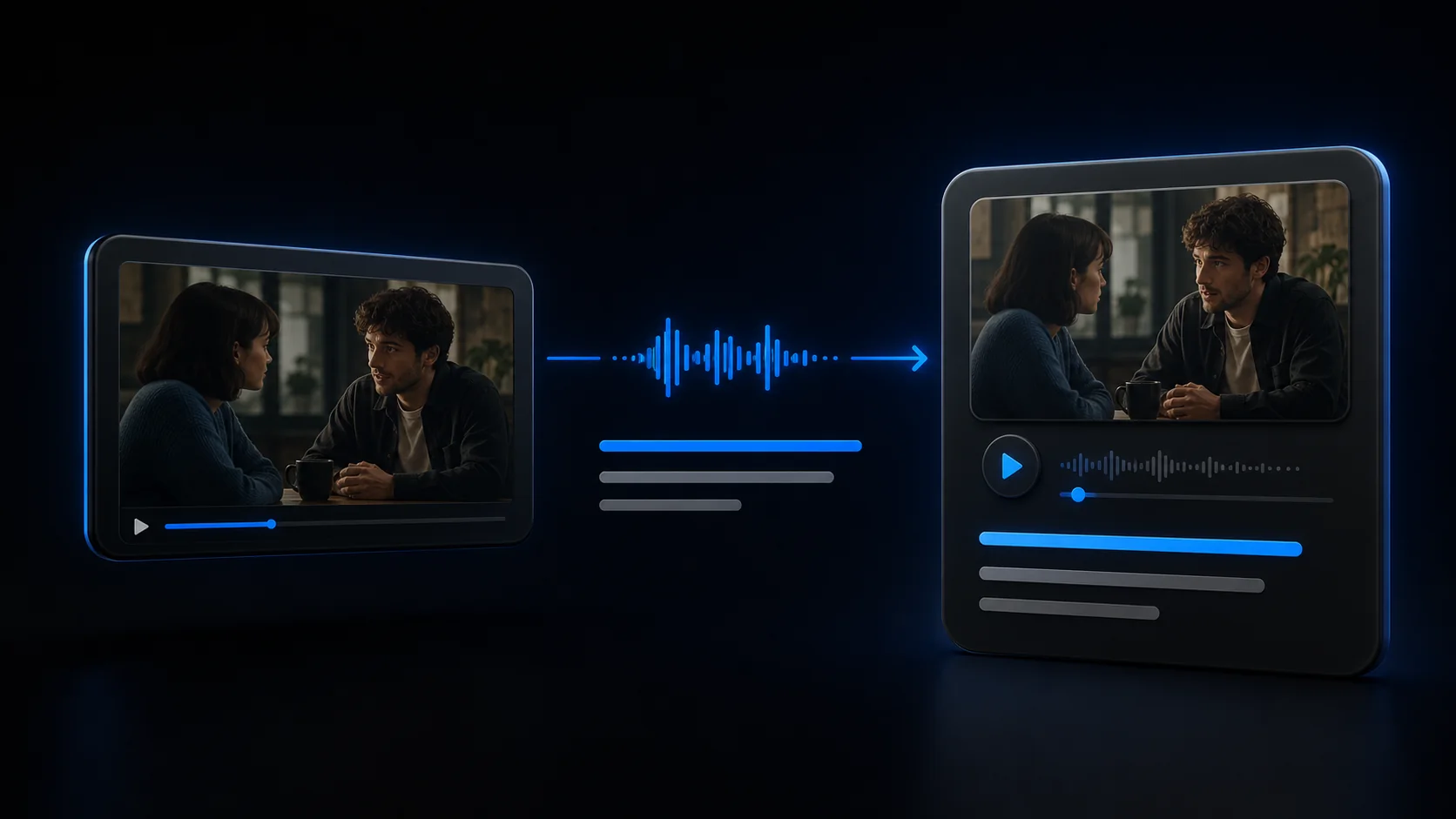
Before adding media, start with one clear card job and structured fields so every clip or image has a reason to be there.
If you already have a sound file or want to record one directly, follow the step-by-step guide to adding audio to Anki fields and card templates.
An Anki note stores the reusable content, a card template decides which fields appear on each side, and the resulting card is what Anki schedules. Keeping those layers separate matters: putting an audio filename directly into template HTML makes every note share it, while placing audio in an Audio field lets each note play its own clip.
Why media can help
Text alone cannot preserve pronunciation, rhythm, hesitation, emphasis, or the scene that made a phrase memorable. A video source can provide those signals.
Media can help a card answer questions such as:
- What did this reduced or connected speech sound like?
- Which person or object did the pronoun refer to?
- Was the line sincere, sarcastic, formal, or playful?
- Which physical action gave the phrase its meaning?
- Where did I encounter this expression?
The contrast below is not a rule that every card needs media. It shows what audio, a useful frame, and a source can restore when isolated subtitle text loses important context.
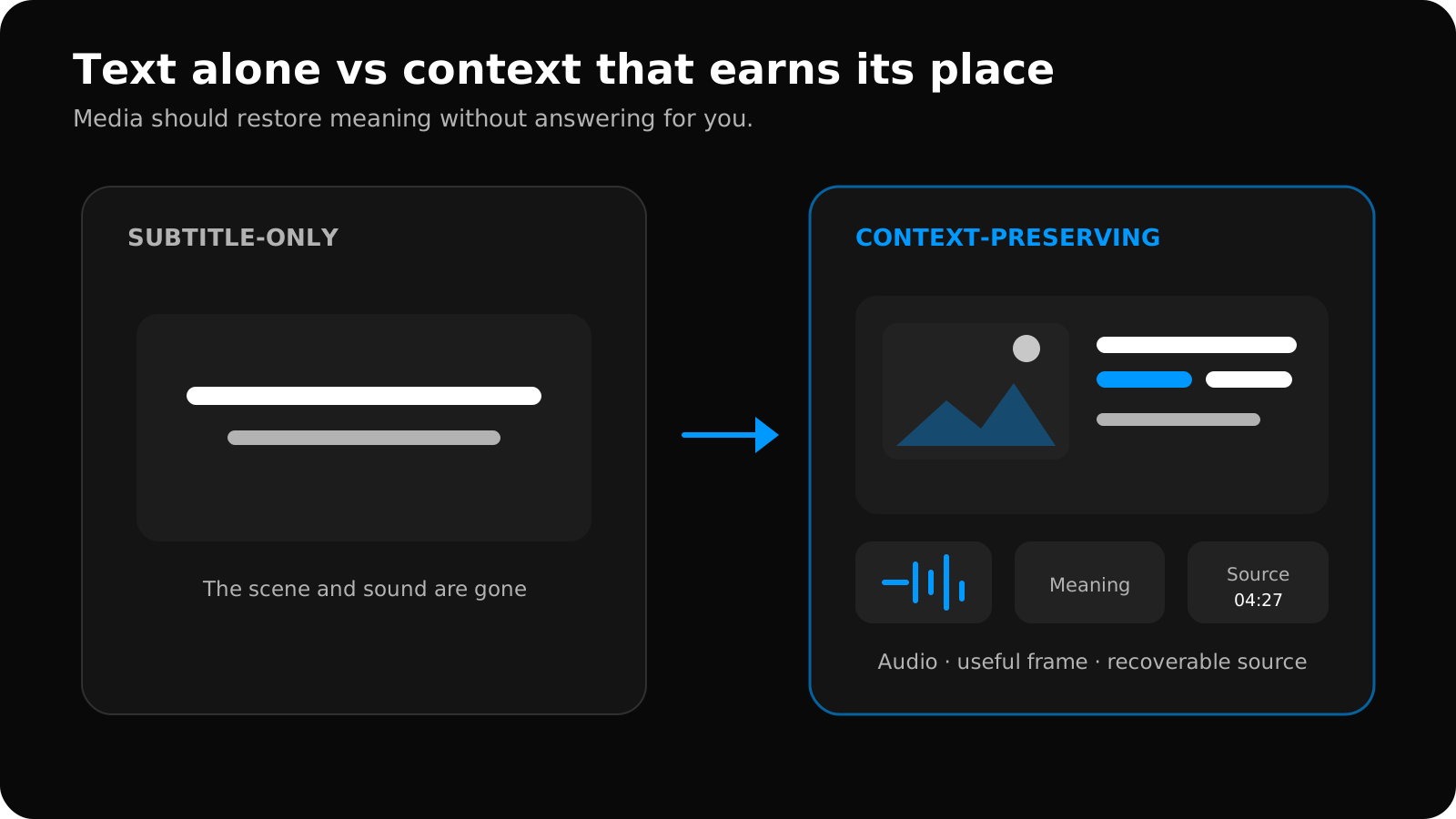
Swipe to explore the full diagram.
That does not mean more media is always better. Every extra element changes the difficulty of the prompt. A distinctive face or subtitle burned into a screenshot may reveal the answer before you retrieve it.
Use audio deliberately
Trim around the linguistic unit
Include the complete word or sentence with a small natural boundary. Clips that begin after the first consonant or stop before the final sound teach an incomplete signal. Clips with long setup slow every review.
For a repeatable production process, follow the step-by-step guide to trimming audio clips for Anki.
Listen with your eyes closed before accepting the clip. If you cannot tell where the target begins because of music, overlapping speech, or an abrupt cut, choose another moment or extend the boundary.
Decide whether audio is the prompt or evidence
For listening recognition, audio belongs on the front and the transcript belongs on the back. For a reading card, the sentence can appear first and audio can confirm pronunciation after the answer.
Do not autoplay an explanation, translation, and original clip together. The review should make the target clearer, not noisier.
For a complete audio-first setup, use the Anki listening-card guide to choose a listening test, create separate fields, paste the front and back templates, and diagnose misses during review.
Store audio in its own field
Anki can attach audio, images, and videos to note fields. Its editing documentation describes attaching media, while the field guide explains how media fields appear through templates.
Separate storage makes it easy to move audio between sides, disable autoplay, or create a listening card without touching the underlying sentence.
For example, a listening template can put {{Audio}} alone on the front and reveal {{Sentence}}, {{Meaning}}, and {{Source}} on the back. A reading template can show {{Sentence}} first and reserve {{Audio}} for feedback. Both cards can come from the same note without duplicating the media file.
Use images as context
Choose a frame that explains the scene
A useful screenshot might show the object being named, a gesture that disambiguates intent, or the people involved in the exchange. A random frame selected at the subtitle midpoint may be visually attractive but informationally empty.
Avoid accidental answer leakage
Check for burned-in subtitles, signs, interface text, or a visible object that directly names the target. If the image makes retrieval trivial, move it to the back, crop it, or remove it.
Prefer source context over generic stock images
The value of a mined card is its connection to something you actually watched. A generic illustration generated for every word can make cards look polished while weakening that connection.
If the original scene is not useful, an image may not be necessary. Empty media fields are acceptable.
Keep files portable
An .apkg deck can include media when exported with that option. The Anki exporting guide explains how deck packages carry cards, notes, templates, and media. After import, use Anki’s media check when files appear missing or unused.
If files disappear after transfer, use the APKG import and missing-media troubleshooting steps.
If the card imports but remains silent, follow the Anki audio not playing diagnostic sequence to separate autoplay, field, template, package, and sync problems.
Before importing a deck from another source, the free Anki Import Checker can inspect the APKG locally and compare every audio, image, video, and CSS reference with the media files bundled inside it. It also flags empty media fields and template references that point to fields that no longer exist.
A practical audio-and-image field layout
Use descriptive field names instead of one large Extra field. A compact multimedia note might look like this:
| Field | Example value | Template role |
|---|---|---|
Sentence | The exact target-language utterance | Prompt or revealed transcript |
Focus | One word, phrase, or sound contrast | The learning target |
Meaning | A short explanation for this scene | Feedback after the attempt |
Audio | One naturally trimmed utterance | Listening prompt or pronunciation evidence |
Image | A frame that clarifies speaker, object, or action | Optional context, usually on the back |
Source | Video title and timestamp | Correction and provenance |
Empty Audio or Image values are valid. Anki supports conditional replacement, so a template can hide the surrounding media container when its field is empty. That is cleaner than inserting placeholder images or silence into every note.
Media checklist
Before accepting a multimedia card, check:
- Purpose: Does each media item support the card’s specific job?
- Timing: Does the audio contain the whole target without excessive setup?
- Accuracy: Does the transcript match the clip?
- Difficulty: Does the image or subtitle reveal the answer prematurely?
- Portability: Will the media be included when the deck is packaged?
- Speed: Does the card still load and review comfortably on the device you use?
- Source: Can you return to the original scene if a correction is needed?
When a card feels overloaded, remove elements in reverse order of importance. Decorative styling goes first, then redundant explanations, then media that does not change understanding. Keep the target, the evidence needed to verify it, and the source.
Audio and images should preserve a meaningful encounter with language. They are not a requirement to fill on every note.
Anki audio and image FAQ
Should audio be on the front or back of an Anki card?
Put audio on the front when the card tests listening recognition. Put it on the back when written language is the prompt and audio is pronunciation feedback. Avoid playing it before the attempt when sound would reveal the answer.
Can one Anki note create both listening and reading cards?
Yes. Store the sentence, audio, meaning, image, and source in separate fields, then use two card templates with different fronts. Check the generated card count so one useful note does not accidentally multiply into unwanted reviews.
Why is an image or audio clip missing after APKG import?
The package may have been exported without media, the import may still be processing, the filename may not be bundled, or the template may reference the wrong or empty field. Follow the APKG missing-media diagnosis and import checks before rebuilding the card.
Related guides
Anki Video Clips vs Audio and Screenshots
Choose short video clips or audio-plus-screenshot cards by learning goal, file size, review speed, device support, and the context each format preserves.
Read article →Anki Card Templates for Language Learning: 4 Copyable Layouts
Compare four copyable Anki card templates for language learning, choose by retrieval goal, install safely, and test HTML, CSS, media, and mobile layouts.
Read article →How to Make Anki Cards From Videos: 5-Step Workflow
Make focused Anki cards from videos in five steps: select useful moments, verify text, add audio or images, structure fields, and inspect the APKG.
Read article →Anki Audio Not Playing? Fix Missing or Silent Sound
Diagnose Anki audio that will not play by checking replay settings, sound fields, card templates, missing media, APKG contents, and device sync.
Read article →