
Workflow
YouTube Subtitles to Anki: A Reliable Card Workflow
Turn permitted YouTube caption moments into focused Anki cards by selecting useful cues, checking transcript accuracy, aligning audio, and preserving source context.
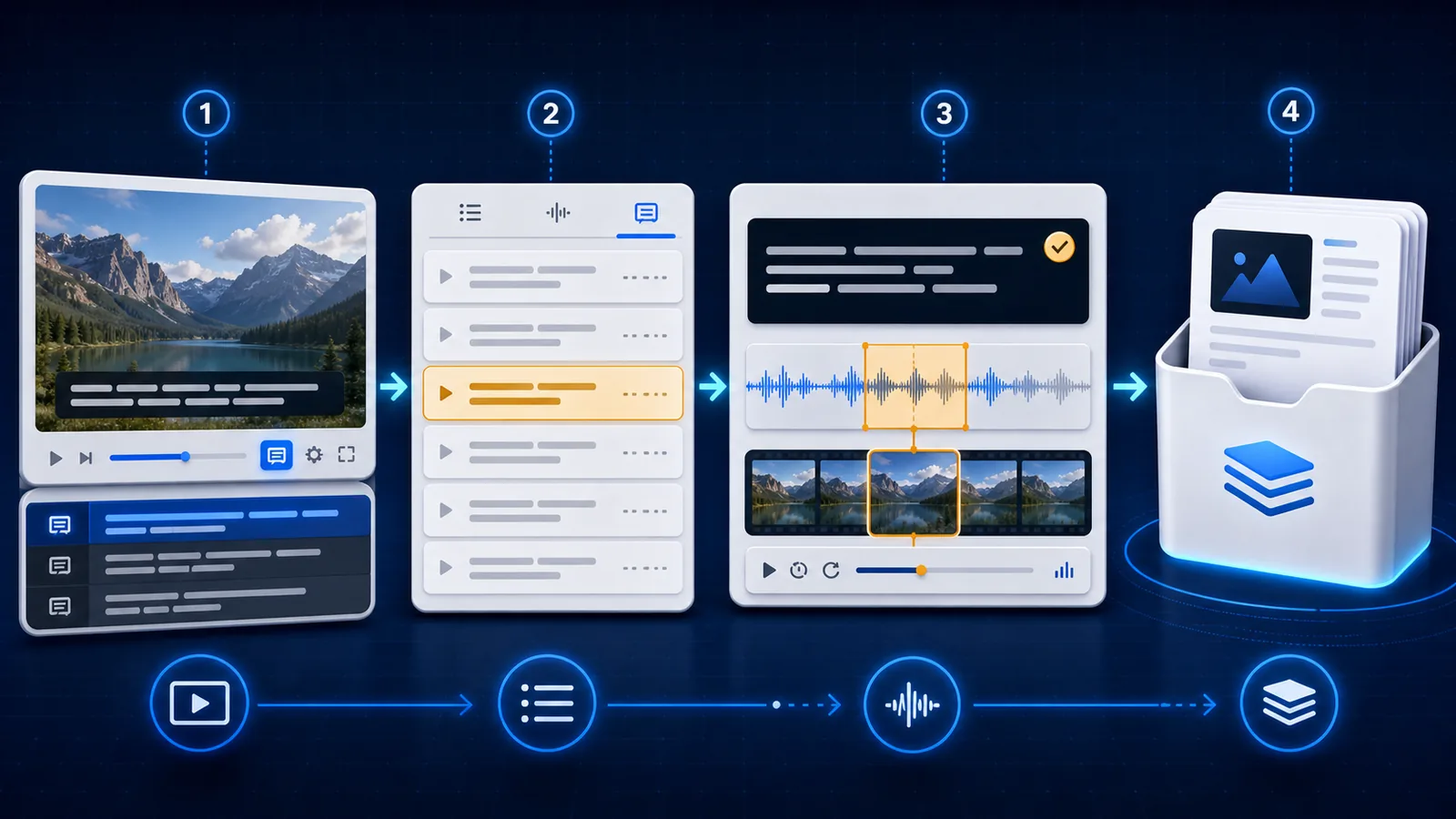
YouTube captions make it easy to locate spoken moments, but a caption cue is not automatically a good flashcard. A reliable workflow selects a useful line, checks it against the audio, preserves source context, and creates only the review direction that supports your goal.
Use video and caption material only when you own it, have permission, or another applicable right or license allows the use. YouTube's copyright guidance explains that audiovisual and sound-recording rights belong to their owners unless permission, a license, public-domain status, or a legal exception applies.
Check source and caption access
Use the least complicated legitimate path:
- For your own upload, YouTube Studio lets the creator edit timing and download caption files.
- For a video with captions you can view, the Show transcript panel can help locate a useful moment and jump to its timestamp.
- For a permitted local MP4, work from the local video and an authorized subtitle track.
- If no reliable caption exists, transcribe only selected moments and verify them manually.
YouTube explains that caption files contain text plus time codes, and documents common formats such as SRT and SBV in its supported caption-file guide. Do not assume that public viewing grants a right to download, redistribute, or package someone else's audio and imagery.
If you already have an authorized local .srt file, use the dedicated SRT-to-Anki conversion guide for encoding cleanup, multiline cues, timestamp retention, field mapping, and import QA.
Subtitle-to-Anki workflow
1. Watch before extracting
Understand the scene first. Captions omit visual references, speaker intent, and sometimes sound cues. Mark promising timestamps during viewing and process them after a natural stopping point.
2. Select one useful cue
Choose a line with:
- one main learning target;
- enough context to understand the target;
- clear sound at the boundary; and
- value beyond the novelty of the scene.
A subtitle may span two sentences or split one sentence across cues. The correct card unit follows the spoken utterance, not the file's line break.
3. Check text against sound
Automatic captions are produced through speech recognition and may be wrong. Verify:
- names and uncommon words;
- negation;
- homophones;
- word boundaries;
- verb endings;
- speaker changes; and
- punctuation that changes interpretation.
The YouTube transcription glossary distinguishes automatic captions, transcripts, subtitles, and timed caption tracks. Use those labels accurately when diagnosing a source.
4. Align the media
Trim the smallest complete utterance that preserves natural onset and ending. Avoid cutting the first consonant, a final particle, or the reaction that establishes meaning. The audio-clipping guide provides a boundary checklist.
Add one scene image when it identifies the situation or referent. Put a revealing screenshot on the back when it gives away the meaning.
5. Store structured fields
Use:
Sentence
Focus
Meaning
Translation
Audio
Image
Source
Notes
Keep the timestamp in Source so you can reopen the exact scene. Keep audio and image separate so a listening template can hide the transcript.
6. Generate one focused card
For reading, show the sentence and reveal meaning, audio, and source. For listening, show audio and reveal transcript. Do not generate reading, listening, Cloze, and production cards for every subtitle merely because the fields exist.
Verify text and timing
Before importing:
- The subtitle matches the actual speaker.
- The target word and inflection are correct.
- The clip begins before speech and ends after the complete target.
- The card has one retrieval goal.
- The transcript stays on the back of an audio-first card.
- The source title and timestamp are recoverable.
- Media filenames survive Anki import and sync.
After import, replay on the devices you use. Anki stores note media in its collection media folder; Tools → Check Media reports missing references and unused files. See the official Anki media guide.
Avoid whole-transcript conversion
A 20-minute transcript may contain hundreds of cues. Converting all of them creates three problems:
- Selection debt: trivial, redundant, and incomprehensible lines enter the queue.
- Accuracy debt: caption errors become repeated exposure.
- Review debt: every generated card competes with listening and reading time.
Choose a card budget from your observed review capacity, then make candidates compete for a place. The per-video card-budget guide gives a worked calculation.
For the complete source-to-APKG path, start with YouTube to Anki. When captions are missing, use the separate no-subtitle fallback workflow.
YouTube subtitle FAQ
Can I turn YouTube subtitles into Anki cards?
Yes, for material you are allowed to use. Verify selected caption lines against the audio and preserve the source.
Are automatic captions accurate enough?
They are useful drafts, not guaranteed transcripts. Check names, negation, word boundaries, homophones, and timing.
Should I convert every subtitle line?
No. Select only lines with one useful target and a review cost you are willing to carry.
Related guides
YouTube to Anki: Make Flashcards With Audio and Images
Turn permitted YouTube video moments into Anki flashcards with verified subtitles, trimmed audio, useful images, source timestamps, and an APKG deck.
Read article →Add Source Timestamps to YouTube Anki Cards
Store useful source timestamps on video-derived Anki cards so you can reopen the exact scene, verify context, repair errors, and avoid cluttered prompts.
Read article →How to Make Anki Cards From a Video With No Subtitles
Use a permission-conscious fallback workflow to transcribe selected video moments, align reliable text and audio, and skip lines you cannot verify.
Read article →